
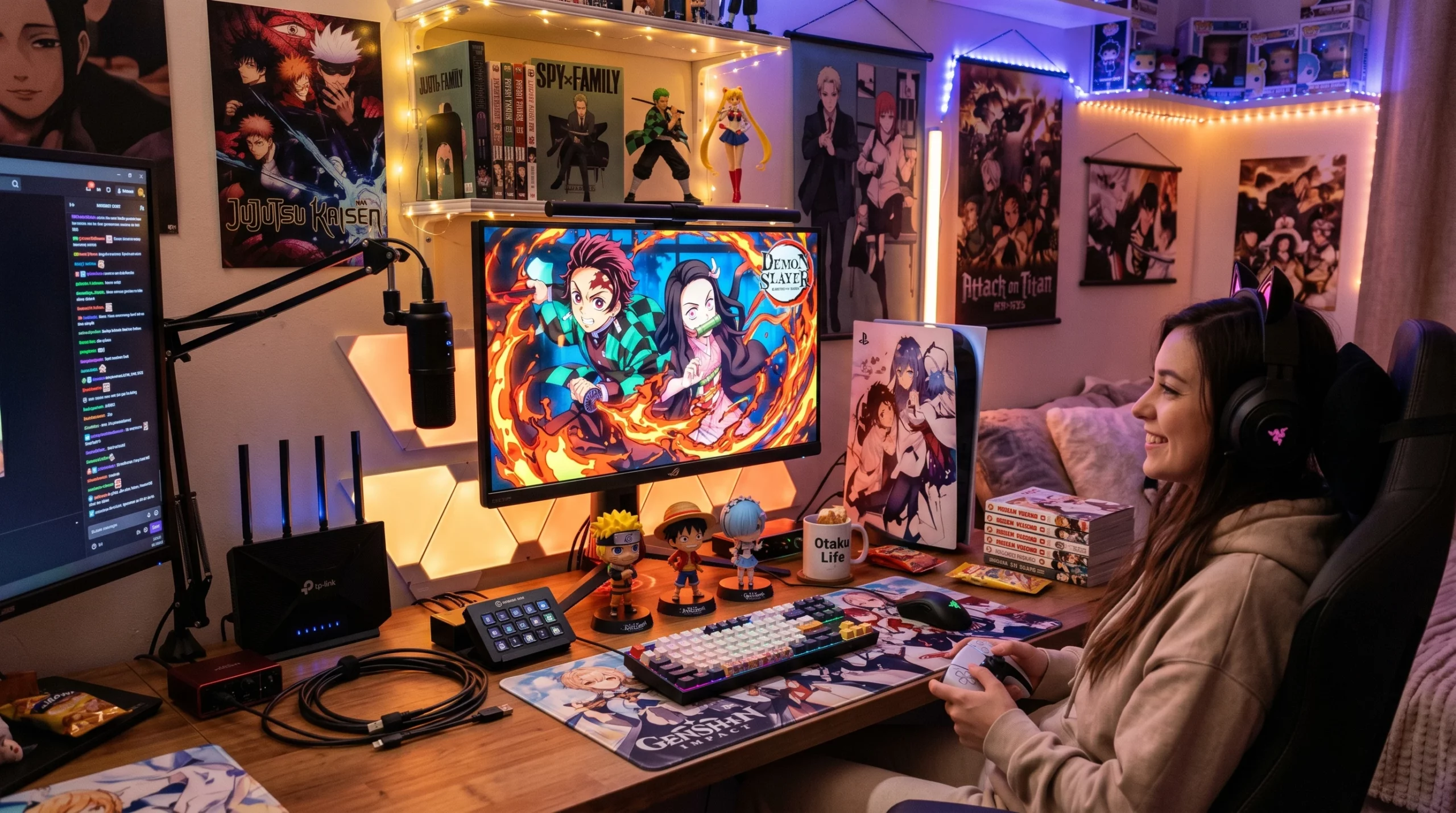
Tuning in for a favorite anime episode and seeing it freeze, pixelate, or buffer unexpectedly can be super frustrating. Good streaming quality is pretty important if you want smooth action, sharp visuals, and those bright anime colors to really pop. Whether you’re binging classic series or catching seasonal hits, knowing how to boost streaming quality helps you enjoy anime just how it was meant to look.
Most anime platforms, from Crunchyroll to HIDIVE and even Netflix, give you a few ways to tweak your settings for better results. I’ve tested streaming performance across platforms like Crunchyroll, HIDIVE, and Netflix on multiple devices, focusing on buffering, resolution stability, and playback smoothness, so I’ll share what I’ve learned about getting sharp, smooth streams no matter your setup.
Here’s my go-to guide for optimizing streaming quality on anime platforms. You’ll also find answers to common troubleshooting questions for when things just aren’t working the way you want.
Step 1: Check Your Internet Connection
Your streaming quality depends a lot on your internet speed and how stable your connection is. HD and 4K anime streams, in particular, work best with faster connections. If your streams buffer or drop in quality, internet issues might be the cause.
Recommended Speeds for Anime Streaming:
- SD anime (480p): 3 Mbps minimum
- HD anime (720p–1080p): 5–10 Mbps
- 4K anime: 25 Mbps or higher
WiFi sometimes causes hiccups if your router is far away or there’s interference. For a smoother experience, try connecting your device with an ethernet cable or sitting closer to the router. Also, check if other people on your network are downloading big files or gaming online; they can reduce your available bandwidth.
If you want a quick check-up on your network, try speed testing sites like Speedtest.net before settling in. This gives you an idea if you need to reset your router or move closer to your signal before starting your binge session.
Step 2: Adjust Platform Streaming Settings
Most anime streaming platforms have quality settings that you can adjust manually. Sometimes, the service will automatically pick a lower quality if your connection dips, so double-check these options if your anime looks blurry or pixelated.
Where to Find Video Quality Settings:
- Crunchyroll: Settings cogwheel » Video Quality (Auto, 480p, 720p, 1080p)
- Funimation/HIDIVE: Playback controls » Quality button
- Netflix: Account settings » Playback settings
If you want the sharpest visuals and your internet can handle it, set your preferred quality to the highest available (usually 1080p for most titles).
Extra Settings Worth Checking:
- Enable “Highest Quality” or switch off “Auto” whenever possible
- Turn off any energy saving mode or datasaving mode on your device/app
- Enable hardware acceleration in your browser or app; this helps achieve smoother video playback, especially on laptops and older PCs
Some platforms default to lower quality on mobile devices or when you’re not on WiFi. Tweak these in your app settings so you always get the best possible stream. Also, some streaming apps let you set default video preferences, so poke around those menus to lock in higher quality every time.
Step 3: Understand Anime Streaming Quality Standards
Anime streaming platforms usually offer a few standard quality options. Here’s what to expect:
- 480p (SD): Good for smaller screens or slower internet. Not super crisp, backgrounds and text might look fuzzy.
- 720p (HD): Nice balance between bandwidth and clarity. Good enough for most tablets or smaller TVs.
- 1080p (Full HD): Super sharp, best for most modern screens. My go-to for streaming if available.
- 4K (UHD): Only a handful of newer anime get this option. Needs a fast internet connection and a 4Kcapable screen to really see the difference.
Japanese TV broadcasts often max out at lower resolutions than Bluray and streaming masters, so don’t stress if older series never get past 720p or 480p. Platforms are just providing what’s available from the source. Some remastered anime may eventually get higher resolutions, but this depends on rights and source material.
Step 4: Reduce Buffering and Playback Issues
Buffering is one of the most common problems when streaming anime, especially during popular premieres or on slower networks. Here are a few ways I minimize buffering and lag:
Quick Fixes for Buffering:
- Pause the stream and give it a minute to load before watching (helpful if your connection is a little slow)
- Close background apps and tabs that are streaming music, video, or downloading files
- Reset your router or switch to a wired connection for more stability
- Lower the stream quality setting briefly if your internet is being spotty
- Try a different browser or update your app. Some updates quietly improve playback speed
If you experience lots of issues around new episode release times, it might just be traffic overload on the platform’s servers. Waiting 10–15 minutes can make a difference when everyone is reloading for a simulcast drop.
Reducing buffering can also be as simple as watching a few hours after a premiere to skip the rush, updating your device firmware, or making sure nothing else in your home is hogging the network bandwidth at the crucial moment.
Step 5: Device and Browser SetUp for Better Anime Streaming
Your device and browser actually play a bigger role than most people realize. Outdated browsers or slow devices can cause playback issues or stop you from seeing the best quality possible.
Device & Browser Tips:
- Update your streaming app or browser regularly for new features and bug fixes
- Clear cache and cookies monthly (especially if things suddenly start stuttering or not loading)
- Some browsers like Chrome or Edge handle video streaming better than Firefox or Safari for certain platforms; experiment to see what works best for you
- Smart TVs or streaming sticks (like Roku, Fire TV, Chromecast) often have dedicated anime apps that work better than screen mirroring from a phone
If you’re casting from your phone, check if the app supports HD or 4K streaming. Some mobile devices default to lower quality even if your TV supports higher resolutions, so always poke around in the video settings menus.
Remember, a cluttered device can result in slower performance; regular updates and the occasional restart keep your gear fresh and ready for hours of anime marathons.
Step 6: Anime Streaming Platform Choices Matter
Not every anime streaming service is built the same. Some platforms put effort into better servers, faster content delivery, or even have more efficient videocompression. If you consistently struggle with quality on one service, it’s worth trying another platform if they carry the same show.
Paid subscriptions usually unlock the highest video quality, fewer ads, and more reliable streams compared to free ad-supported versions. If you’re a hardcore anime fan, paying for higher tiers can be totally worth it for less buffering and sharper video. You might also get access to simulcasts sooner and watch with fewer interruptions.
For a breakdown of what each platform offers in terms of resolution and playback stability, sites like Anime-Planet and Reddit’s r/anime are pretty handy for uptodate experiences from other viewers. Checking out community posts can also lead you to tips on how to get the most out of your particular devices.
Common Questions & Troubleshooting
How do I improve video quality on anime streaming services?
Doublecheck your platform’s video quality settings and select the highest option. Upgrade your internet connection if possible, and try to watch during offpeak hours if servers seem overloaded during popular release times.
What settings should I change for better anime streaming quality?
I always look for a “video quality” or “streaming quality” setting and switch it from “Auto” to the highest option. On WiFi, I set my device to prefer 5GHz networks for more stable speed. Also, make sure your app isn’t defaulting to data saver or energy saver mode, which sometimes lowers quality.
What affects streaming quality on anime platforms?
Internet speed, WiFi interference, your device’s age, browser compatibility, and even how busy the streaming service’s servers are all come into play. Free accounts may get a lower bitrate or more aggressive buffering compared to premium subscribers.
How to reduce buffering on anime streaming?
Lower the stream quality temporarily, pause to let it buffer, or switch to a wired connection. Resetting your router and reducing other traffic on your network helps a lot, too. Sometimes, restarting your streaming app or switching browsers does the trick. If buffering continues, our troubleshooting guide covers the most common streaming problems.
Anime Streaming Next Steps
Upgrading your streaming setup pays off by giving you smoother streams and avoiding annoying buffering in the middle of key episodes. Start with internet speed and streaming settings, then work through device and browser tweaks. If problems stick around, try out a different platform or invest in a better router to keep your anime nights troublefree.
Your Action Plan for Better Anime Streaming:
- Test your internet speed and move closer to the router if needed.
- Switch your anime streaming settings to the highest available quality.
- Update your streaming apps and browser; don’t forget to clear old cache files.
- Try different platforms if one isn’t performing well.
Got a favorite anime streaming tip or ran into a stubborn streaming glitch? Drop your thoughts in the comments or check out community forums—sometimes the best fixes come from other fans just like us. By joining the conversation, you might even stumble upon a fix you hadn’t thought of yet!